From 10 to 40Gbps - Getting a Mellanox ConnectX-5 Working in WSL2

The Setup
The goal was to improve a two-node distributed vLLM inference setup running a 120GB model across two machines - a Windows 11 Pro workstation running WSL2, and a bare-metal Linux server (Ubuntu). Both machines have NVIDIA RTX Pro 6000 Blackwell GPUs with 96GB VRAM each, connected via a Mellanox ConnectX-5 Ex DAC (Direct Attach Cable) link.
The existing setup used pipeline parallelism over a 10GbE Realtek link at ~70 tokens/second. The ConnectX-5 cards were physically present but not being used for vLLM traffic. The question: could we route vLLM pipeline parallelism traffic over the ConnectX-5 and improve throughput?
What followed was a full day of BSODs, driver configuration, Hyper-V settings, and a surprising culprit hiding in a Realtek filter driver.
The Problem
With the 100Gbps Mellanox ConnectX-5 installed on both systems, connected with a QSFP DAC cable, I was not able to get the Windows -> Linux speeds to be any greater than 10Gbps in WSL, even when the target IP I was trying to connect to was the Mellanox card on the other end, thus it physically could only go through the 100Gbps NIC.
One of the constraints I knew I was working with going into this was that the card was installed on a PCIE Gen 4x4 slot, which theoretically maxes out at 64Gbps, but still 10Gbps was much lower than what I was expecting, considering that my entire home network is already on 10Gbps.
Step 1: Finding the Adapter
> Get-NetAdapter | Select-Object Name, InterfaceDescription, Status, LinkSpeed
이더넷 10                  Mellanox ConnectX-5 Ex Adapter #3   Up    100 Gbps
vEthernet (FSE HostVnic)   Hyper-V Virtual Ethernet Container   Up     10 Gbps  ← ⚠️
이더넷 7                   Realtek PCIe 10GbE Family Controller  Up     10 Gbps
The vEthernet (FSE HostVnic) showing 10 Gbps was suspicious. Even when the target IP I was trying to connect to was the Mellanox card on the other end, meaningit physically could only go through the 100Gbps NIC, I wasn't getting the speeds I was expecting.
There were no CPU bottlenecks nor memory bottlenecks that I was seeing, so the problem must have been from something within Windows or WSL.
Additionally the reverse direction (Linux Server -> Windows server) calls were exceeding 100Gbps, so I knew that the hardware was not the issue.
Step 2: Diagnosing the Virtual Switch Problem
Checking the Hyper-V virtual switches revealed the root architectural problem:
> Get-VMSwitch | Select-Object Name, SwitchType, NetAdapterInterfaceDescription
Name           SwitchType   NetAdapterInterfaceDescription
----           ----------   ------------------------------
Default Switch   Internal   (no physical adapter)
FSE Switch       Internal   (no physical adapter)
Both Hyper-V switches were Internal, not bound to any physical NIC. WSL2 traffic was routing through a software-only path with a 10 Gbps ceiling, never touching the ConnectX-5.
The next step was to create an External vSwitch bound to the ConnectX-5, and pass through that external vSwitch to WSL.
Step 3: Lots of BSODs
Every attempt to create an External vSwitch via PowerShell resulted in an immediate BSOD.
New-VMSwitch -Name "ConnectX-External" `
             -NetAdapterName "eth10" `
             -EnableIov $true `
             -AllowManagementOS $true
Same result with and without -EnableIov.
Then I tried changing the settings through the Device Manager GUI, which wouldn't cause a BSOD, but instead any attempts to change any value would not get applied and would be immediately reverted.
Collecting a minidump of the BSOD and analyzing it with WinDbg pointed directly at the culprit:
SYMBOL_NAME:  rtf64x64+51b5
MODULE_NAME:  rtf64x64
IMAGE_NAME:   rtf64x64.sys
*** WARNING: Unable to verify timestamp for rtf64x64.sys

STACK_TEXT:
  ndis!ndisFInvokeDetach
  ndis!ndisDetachFilterInner
  rtf64x64+0x51b5         ← null pointer dereference → BSOD
rtf64x64.sys - the Realtek LightWeight Filter driver was crashing inside NDIS during filter detach. When New-VMSwitch triggered NDIS to reconfigure network bindings, it called into the Realtek filter, which dereferenced a null pointer and BSODed the system. This was a Realtek driver bug, not a Mellanox or Hyper-V issue.
The Realtek installer had aggressively bound its filter to every network adapter on the system, including the ConnectX-5, which had nothing to do with Realtek.
Step 4: Unbinding the Realtek Filter Driver
Finding the correct ComponentID for the filter:
> Get-NetAdapterBinding | Where-Object DisplayName -like "*Realtek*" |
    Select-Object Name, DisplayName, ComponentID, Enabled | Format-Table -AutoSize

Name                       DisplayName                           ComponentID  Enabled
----                       -----------                           -----------  -------
vEthernet (Default Switch) Realtek LightWeight Filter (NDIS6.40) nt_rtf64       True
eth10                      Realtek LightWeight Filter (NDIS6.40) nt_rtf64      False  ← already fixed
eth9                       Realtek LightWeight Filter (NDIS6.40) nt_rtf64       True
eth7                       Realtek LightWeight Filter (NDIS6.40) nt_rtf64       True  ← keep this one
vEthernet (FSE HostVnic)   Realtek LightWeight Filter (NDIS6.40) nt_rtf64       True
eth11                      Realtek LightWeight Filter (NDIS6.40) nt_rtf64       True
The fix: unbind the filter from everything except the actual Realtek NIC (eth7):
Get-NetAdapterBinding | Where-Object {
    $_.ComponentID -eq "nt_rtf64" -and
    $_.Enabled -eq $true -and
    $_.Name -ne "eth7"
} | ForEach-Object {
    Disable-NetAdapterBinding -Name $_.Name -ComponentID $_.ComponentID
    Write-Host "Unbound from: $($_.Name)"
}
The Realtek filter had also been silently reverting LSO (Large Send Offload) settings on the ConnectX-5. Every time we enabled LSO via Device Manager, it would revert to Disabled. Removing the filter from the ConnectX-5 binding fixed this too.
After unbinding the Realtek filter, New-VMSwitch succeeded without a BSOD:
New-VMSwitch -Name "ConnectX-External" `
             -NetAdapterName "eth10" `
             -AllowManagementOS $true `
             -EnableIov $true
Step 5: NIC configurations
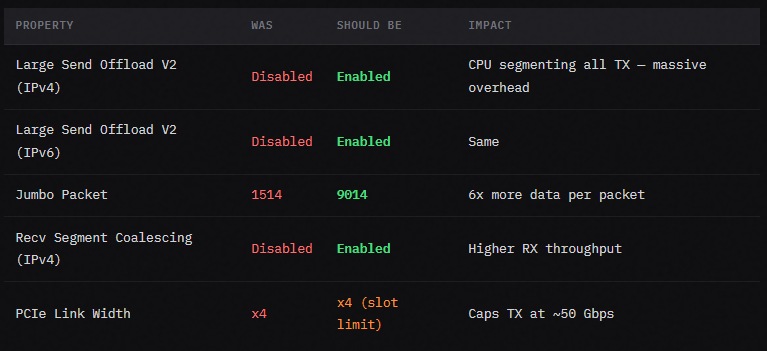
While diagnosing, we also found several NIC properties on the ConnectX-5 that were misconfigured:
PCIe x4 Slot Ceiling
The ConnectX-5 Ex is installed in a PCIe 4.0 x4 slot. PCIe 4.0 x4 provides ~8 GB/s bidirectional bandwidth, which translates to roughly 50 Gbps real-world throughput. This is a hardware limit, but the only option with my B850 AM5 system.
Step 6: The Bridged vs Mirrored Mode Problem
[wsl2]
networkingMode=bridged
vmSwitch=ConnectX-External
ipv6=true
Bridged mode gave WSL2 direct access to the ConnectX-5 and iperf results jumped to 53.6 Gbps, but with a serious problem. WSL2 in bridged mode only gets one network interface (the bridged one). Since the ConnectX-5 is connected only to the Linux machine via DAC, WSL2 lost all access to:
- The local network router (192.168.1.x)
- The internet
- SSH to other machines by hostname
Switching back to mirrored mode restored networking but dropped back to the lower speed. After investigation, the external vSwitch's presence (even in mirrored mode) improved the mirrored mode path, the ConnectX-5 traffic was now routing more efficiently through the physical NIC.
Step 7: WSL2 Kernel Tuning
Several WSL2-side tuning steps were needed to reduce retransmits and improve throughput:
> /etc/sysctl.d/99-network-tune.conf

net.core.wmem_max=134217728
net.core.rmem_max=134217728
net.ipv4.tcp_wmem=4096 87380 134217728
net.ipv4.tcp_rmem=4096 87380 134217728
net.core.netdev_max_backlog=250000
net.ipv4.tcp_congestion_control=bbr
sudo modprobe tcp_bbr
sudo sysctl -p /etc/sysctl.d/99-network-tune.confTX Queue Steering (XPS)
All TX queues were steering to CPU 0 (XPS value 000000). Spreading across cores:
for i in $(seq 0 7); do
    echo $(printf '%x' $((1 << $i))) | sudo tee /sys/class/net/eth2/queues/tx-$i/xps_cpus
done
Ring Buffer Size
TX ring was at 170 (maximum: 2560), filling in microseconds under load:
sudo ethtool -G eth2 tx 2560 rx 3502
MTU / Jumbo Frames
sudo ip link set eth2 mtu 9000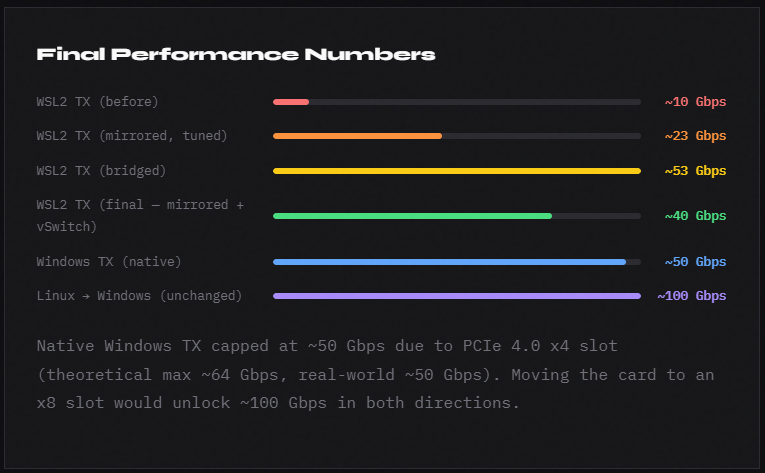
Key Lessons
The Realtek filter driver is aggressive. It binds itself to every network adapter on install. If you have a Realtek NIC alongside any high-performance NIC (Mellanox, Intel X-series, etc.), check whether the Realtek filter is bound to your non-Realtek adapters and remove it. It will silently revert NIC settings and crash the system when Hyper-V tries to reconfigure network bindings.
WSL2 mirrored mode with an external vSwitch present outperforms mirrored mode without one. Even though mirrored mode doesn't directly use the external vSwitch, its presence changes how Windows routes traffic from the WSL2 virtual NICs to the physical hardware. The effect was significant: 23 Gbps -> 40 Gbps.
Bridged mode is faster but breaks general networking. Unless the bridged NIC is on a network with a router/gateway, WSL2 loses internet and LAN access entirely. For a DAC point-to-point link, this means choosing between 40 Gbps with full networking or 53 Gbps with no internet.